Creating an AgeGO account has several advantages:
✓ You verify your age once for any website that uses AgeGO.
✓ You can manage your AgeGO account easily.
✓ You can delete your AgeGO account at any time.
✓ Your account’s email address is encrypted.


✓ You verify your age once for any website that uses AgeGO.
✓ You can manage your AgeGO account easily.
✓ You can delete your AgeGO account at any time.
✓ Your account’s email address is encrypted.
Start the age verification process when you visit a website that uses AgeGO.
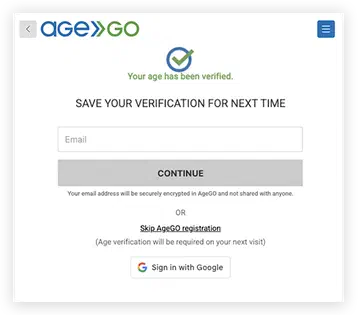
After a successful verification, you can create an AgeGO account to make future access faster.
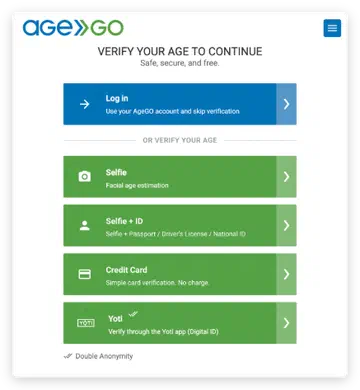
 | This image is an example. Available verification methods may vary depending on your location and local regulations. |
|---|
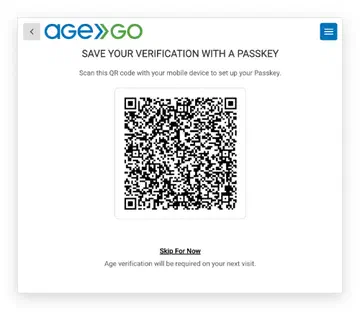
Passkey: Select Passkey to create your AgeGO account with a passkey instead of an email address. You confirm on your phone or tablet, the same way you unlock it (Face ID, fingerprint, or PIN).
| Setting up a passkey on iPhone is only available in Safari and Chrome. In Firefox, the Passkey option isn’t available, so continue with Google or Email instead. |
|---|
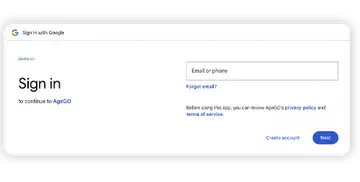
Google: Select Google to create your AgeGO account with your Google email. No one-time code is required.
Email: Select Email, enter your email address, then enter the one-time code sent to your inbox to access the site and create your AgeGO account.
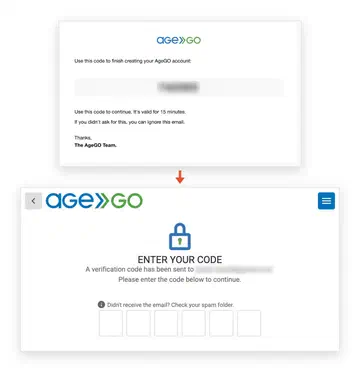
On future visits to websites that use AgeGO, you log in with your AgeGO account.
 | If you select Skip For Now, no account is created and your verification is not saved. You need to verify your age again on your next visit to a website that uses AgeGO. |
|---|
Once you have verified your age through AgeGO, the process is much simpler. The next time you visit a website that uses AgeGO:
1. Visit the website you want to access.
2. In the age verification pop-up, click Log In.
3. Choose how to log in:
✓ Select Passkey (available if you have set up a passkey).
✓ Confirm on your phone or tablet, the same way you unlock it (Face ID, fingerprint, or PIN)
✓ You now have access to the website’s age-restricted content.
✓ Select Google.
✓ Sign in to your Google account.
✓ You now have access to the website’s age-restricted content.
✓ Enter your email address and click CONTINUE.
✓ Enter the one-time code sent to your email.
✓ You now have access to the website’s age-restricted content.
There are two ways to set up a passkey with your AgeGO account. You can create a new AgeGO account with a passkey right after completing your age verification, or you can add a passkey to an existing AgeGO account.
The fastest way. Set up your passkey right after verifying your age, before leaving the site. If you don’t have an AgeGO account yet, this also creates one for you. No email needed.
1. Complete your age verification using any available method. See Verification Methods (opens in a new tab) for the full list.
On the Save Your Verification screen, select Passkey.
| Setting up a passkey on iPhone is only available in Safari and Chrome. In Firefox, the Passkey option isn’t available, so continue with Google or Email instead. |
|---|
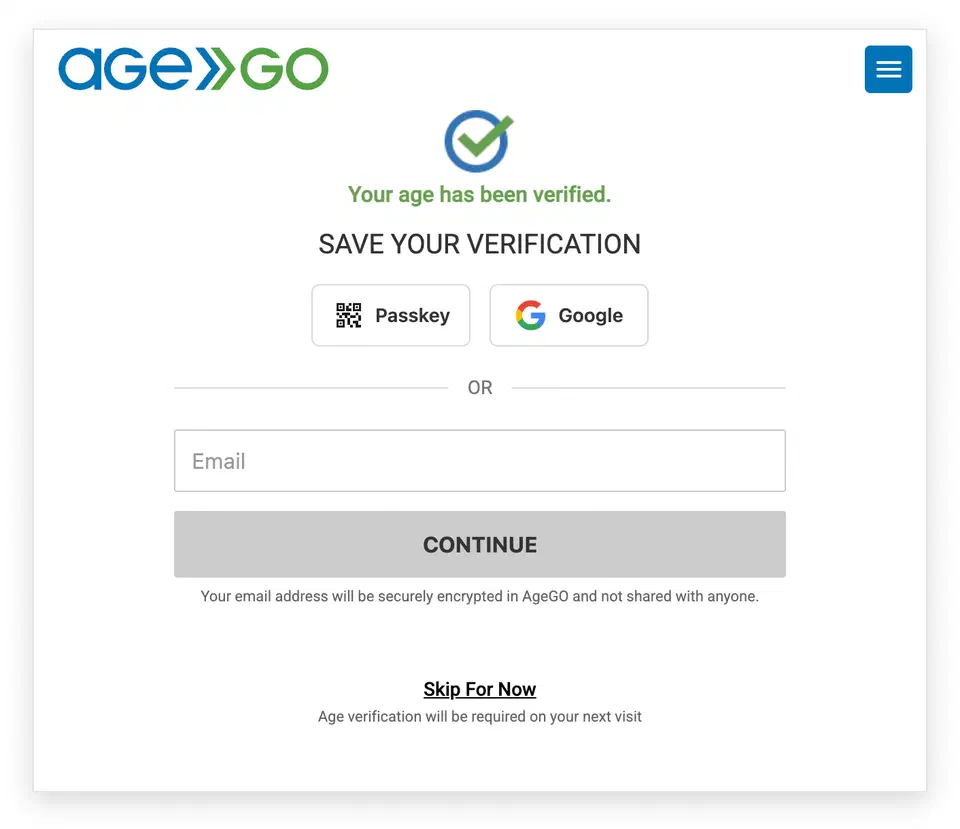
| If you’d rather not set up a passkey now, select Google or Email to create your account instead. You can add a passkey later from My Account (opens in a new tab). If you select Skip For Now, no account is created and your verification is not saved, so you need to verify your age again on your next visit. |
|---|
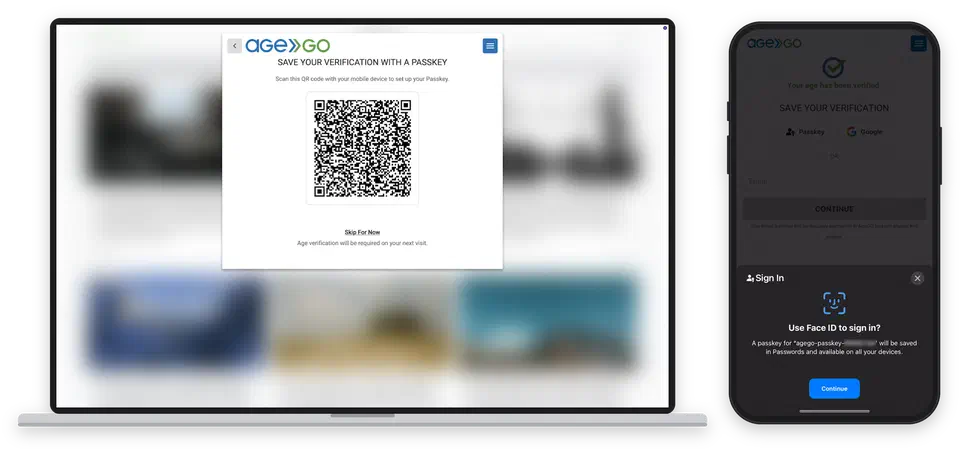
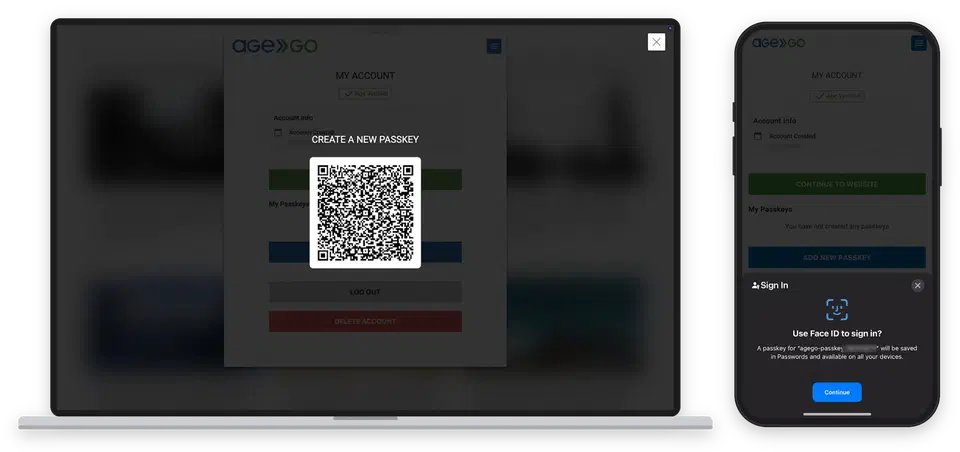
On your phone or tablet, the passkey prompt appears straight away. Confirm the same way you unlock it (Face ID, fingerprint, or PIN).
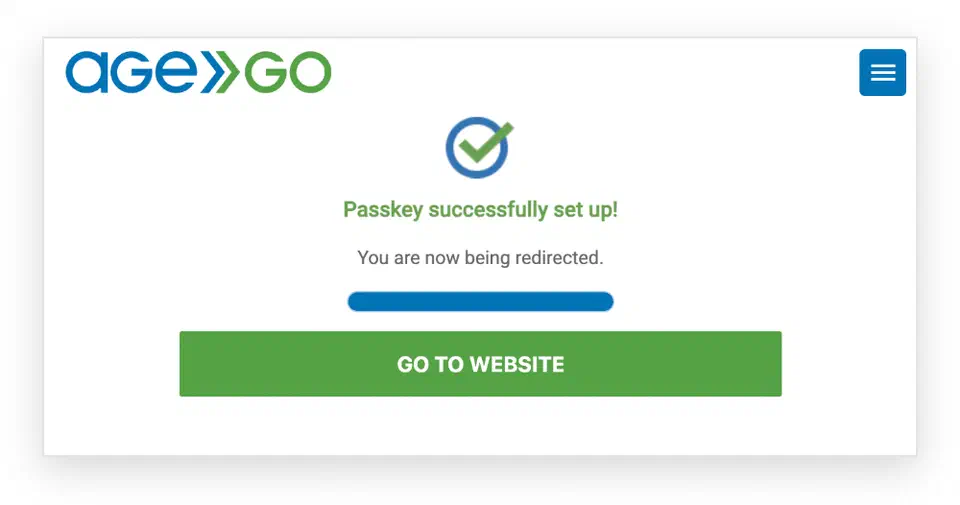
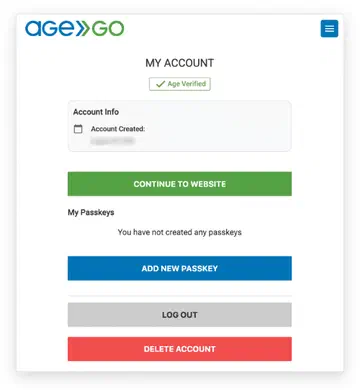
Use this if you already have an AgeGO account.

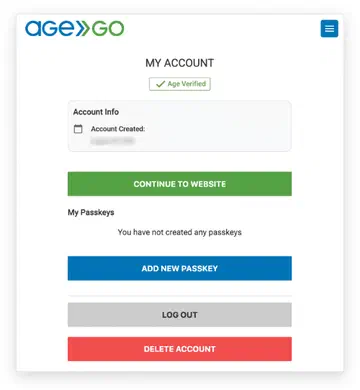
On a computer, a QR code appears. Scan it with your phone or tablet to continue.
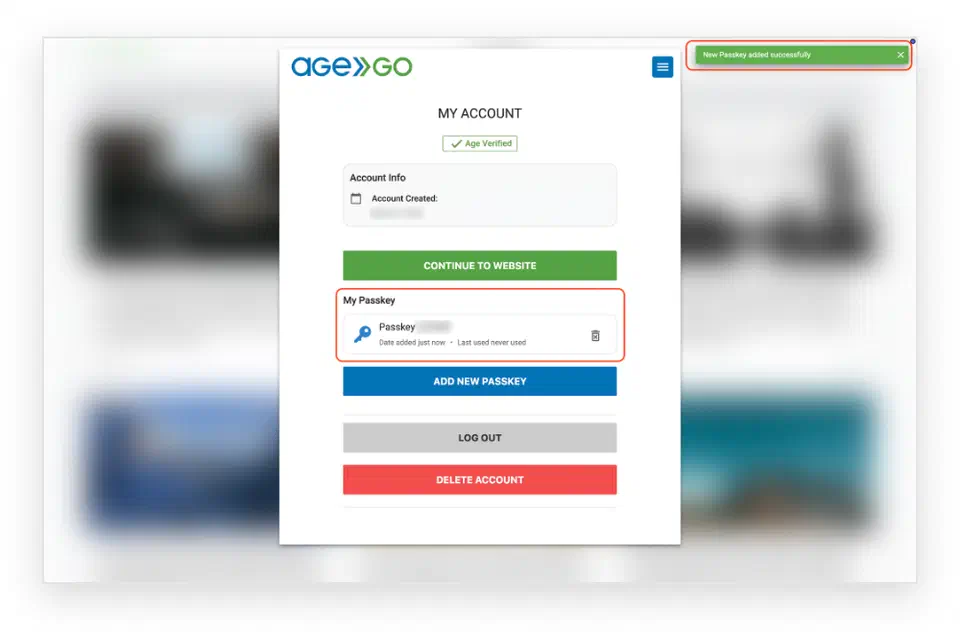
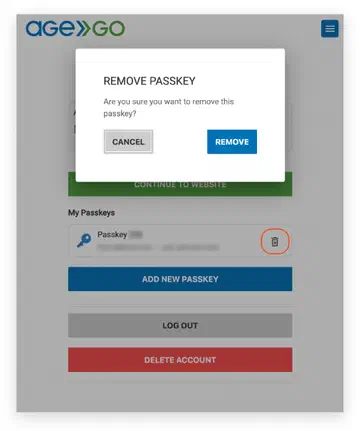
| After you remove a passkey, you can no longer use it to access your account or age-restricted content. |
|---|
When you create an account, AgeGO stores:
✓ Encrypted email address — if you registered with Email or Google.
✓ Age verification status (Verified / Not Verified).
✓ Account creation date.
✓ Passkey details — if you set one up. The passkey itself stays on your phone or tablet; AgeGO only keeps what it needs to recognize it.
✓ An account ID — if you registered with a passkey only. No email address is collected.
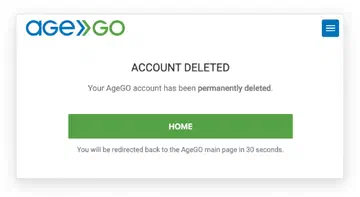
You can delete your AgeGO account at any time. AgeGO does not retain any information once an account is deleted.
The age verification status is the only information AgeGO provides to the website you are verifying your age for.
For more details on the processing of personal data, see the AgeGO Privacy Policy.
You can delete your AgeGO account in My Account (opens in a new tab).
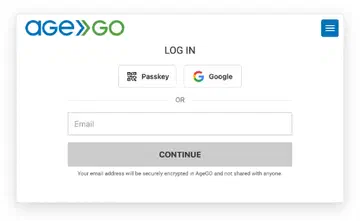
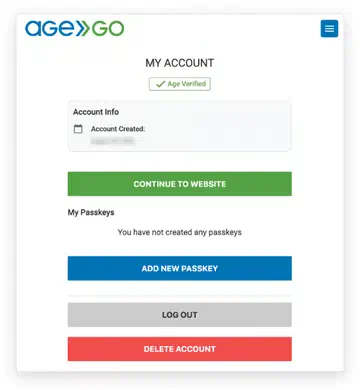
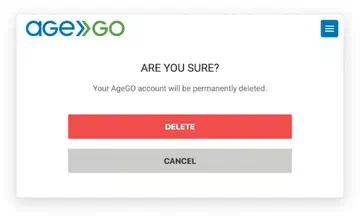
 | Warning: If you log in with a passkey, delete your AgeGO account first (steps above), then remove the passkey from your phone or tablet (in password and passkey settings). · If you remove the passkey before deleting your AgeGO account, AgeGO cannot identify which account it was linked to. |
|---|
| Warning: Deleting your account is permanent and cannot be undone. All data linked to your account is removed according to the AgeGO Privacy Policy and applicable data protection laws. Any associated passkeys are no longer usable. |
|---|